
Guide
How to Install Kipsta Football on Android, Step by Step
The calm way to install the Kipsta Football APK: pick the right build for your phone, allow the install, and finish the first launch data download on Wi-Fi.

On this page
Installing Kipsta Football takes a few minutes, and almost all of them belong to the first launch data download at the end. Start with the file from Kipsta Football APK, so the copy on your phone is the Android build we tested, then follow the steps below in order. Nothing here needs a computer, and nothing here needs an account beyond your game account.
Pick the build for your phone
Kipsta Football ships as an arm64-v8a Android package. Nearly every phone sold in the last several years is arm64, so that is the right file for most readers. A 32-bit phone cannot run this build, and no setting changes that, so check your phone first if the install ever refuses to start.
While the file downloads, check two things: about 3 GB of free storage for the match data that follows, and a steady Wi-Fi connection you can keep for the first launch. Both are cheaper to sort out now than mid install.
Allow the install and confirm
Tap the finished file in your downloads folder. Android will ask you to allow installs from the browser or Files app you used: allow it for that app only, then confirm the install. The icon joins your app drawer, a gold KF mark on a deep green pitch.
If Android blocks the install, open Settings, search for install unknown apps, and switch it on for the browser or Files app only. Never switch it on for every app on the phone.
Open the game on Wi-Fi
Open Kipsta Football on Wi-Fi for the first launch. The game downloads its match data now: stadiums, kits and the files each mode needs. Keep the phone awake and on Wi-Fi until it finishes, and plug it in if you can.
The download runs in stages and shows its progress as it goes. If it pauses, check the Wi-Fi first, then the free storage, then resume it in the game: it picks up where it stopped.
Sign in inside the game
Use your game account on the sign in screen the game itself shows. Sign in only inside the game, and never type your game password into a page or a form outside the game. If a page asks for your password, close it. The Kipsta Football Data Download: Wi-Fi, Storage and First Launch walkthrough covers that side of the game in full.
Once you are in, the game asks you to set your first Dream Team preferences. Pick a formation you know, and do not spend your first coins until you have played a few matches.
Play a friendly first
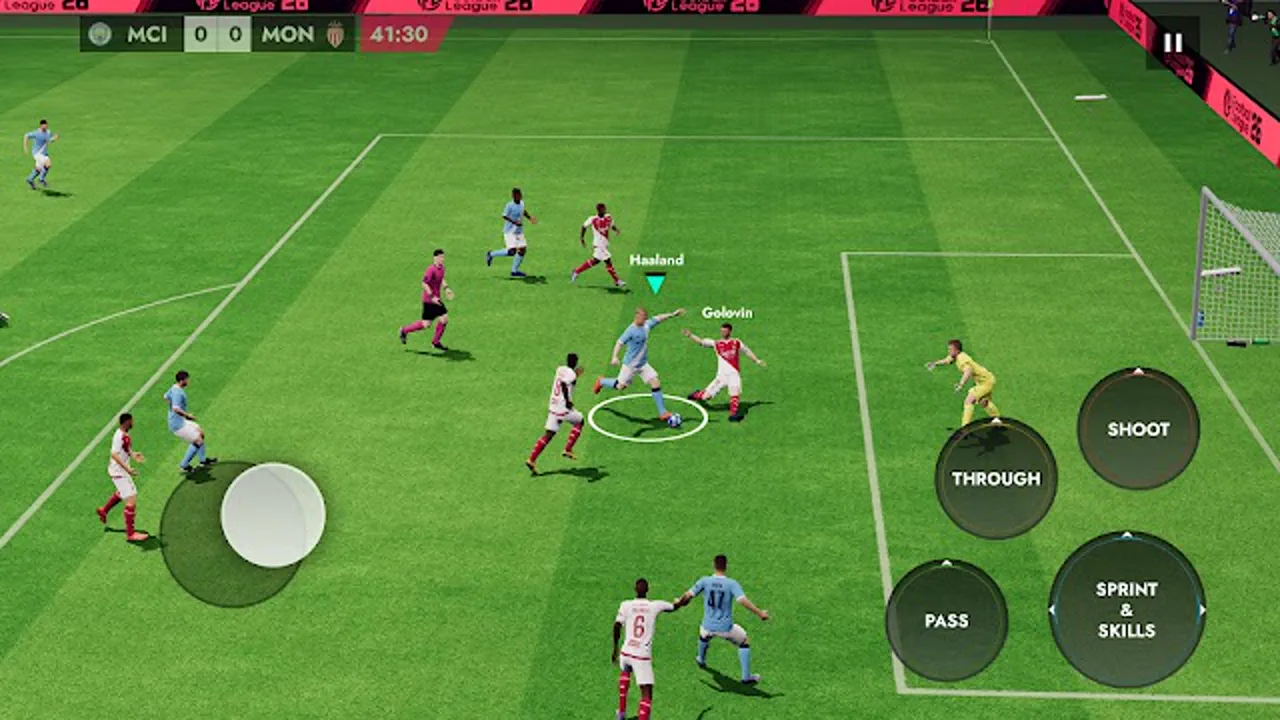
One quick friendly confirms everything: the controls respond, the connection holds, and the graphics preset suits your phone. If the match stutters, drop the graphics preset one step before you start a league or a division run.
A friendly is also the right place to learn the touch layout. Pass, shoot and defend for ten minutes here, and the ranked matches after it will feel far calmer.
When the install fails
The usual causes are a 32-bit phone, too little free storage, or a half downloaded file. Delete the broken copy, free about 3 GB, download the file again on Wi-Fi, and install from the browser or Files app you used.
If the game opens and then asks for more data, that is the first launch download, not an error. Let it finish on Wi-Fi before you judge the install.
After the install: first week checklist
In the first week, play one friendly a day and finish the daily objectives. The friendlies teach the controls, the objectives pay the first coins, and the combination builds a habit without burning you out.
By the end of the week you will know your formation, your best XI and the settings your phone likes. That is the moment to start My League: the squad is settled, the thumbs are warm, and the season is waiting.
Conclusion
Install in order, play a friendly first, and let the first launch download finish on Wi-Fi. That is the whole job, and it is the same routine we run on our own test phones before any build is listed. When you are ready, start from the download page.
Quick Answers
How do I install Kipsta Football on Android?
Download the file, open it, allow installs from the browser or Files app you used, and confirm. Then open the game on Wi-Fi and let the first launch data download finish before your first match.
Why does Kipsta Football ask to install from unknown sources?
Android asks this for any app installed outside its store. Allow it for the browser or Files app you used, and only for that app, then confirm the install.
How much free space does Kipsta Football need?
Keep about 3 GB free. The installer is small, but the first launch data download on Wi-Fi is the part that needs the room.
Kipsta Football will not install on my phone. What should I check?
Check that your phone is arm64-v8a on Android 5.0 or later, free about 3 GB of storage, and download the file again on Wi-Fi. A half downloaded file is the most common cause.